By default, Patient Dashboard doesn't allow you to record that a patient has declined CVD risk, but there is an upgrade you can do to allow this.
There are 4 steps involved:
- Adding a "declined" outcome to screening.
- Importing some additional concepts.
- Checking the concept mapping.
- Setting the "instant decline" option.
Adding a declined outcome
You need to know the screening term that is used to record cardiovascular risk. This is usually "CVR" but can also be "CVDRISK" of "CVDRSK" or something like this. You need to edit the definition of whatever screening term you use at your practice.
- In Medtech32: Setup → Recall/Screening → Screening Terms
In Evolution: File → Options → Recall Screening → Screening Terms - Locate and open the screening term you use to record CVD risk.
- "Outcomes" tab.
- Add an outcome of "D" with a description of "Declined".
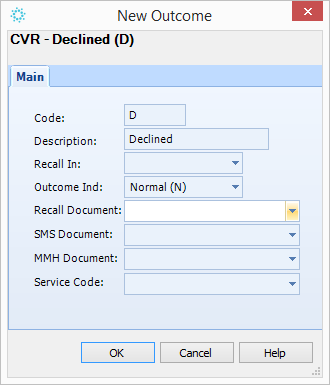
- "OK" to save.
Importing some additional concepts
- Download a form by RIGHT clicking here selecting "Save link as" and save the file somewhere where you can find it. If you LEFT click by mistake, you will just display the file instead of downloading it.
- Medtech32: Setup → Advanced Forms → Advanced Forms Manager
A new menu item "Advanced Forms" appears that wasn't there before:
Advanced Forms → Import Form
Evolution: File → Options → Advanced Forms → Advanced Forms Manager
Action → Import Form - "Browse" to find the file you downloaded in step 1 above, then "Validate" and "Import".
Checking the Concept Mapping
The concepts you've just imported might not be mapped to the correct screening term, so you need to check this:
- Medtech32: Setup → Advanced Forms → Concept Map
Evolution: File → Options → Advanced Forms → Concept Map - Change the "Publisher" to "Procon Limited".
- Locate and open the concept "10.2.11.3 CVD Risk Outcome". Check that "Map's to Screening Term" is mapped to the screening term that you use to record CVD risk.
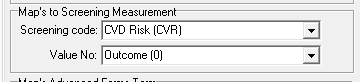
and change it if necessary, - Repeat step 3 for concept "10.2.11.4 CVD Risk Outcome Date".
Setting the "Instant Decline" Option
- Put the patient with a last name of "Dashboard" and first name of "Patient" on the palette.
- Run the form "Patient Dashboard Customise V4" - press {Shift}{F3} to display a list of forms. You may need to expand the "Procon Limited" folder to find it.
- Click on the button marked "CVD Risk".

- Change "Action on Blue Button" to "Instand Decline" and enter "D" as the outcome to use:

- "OK" to save the form.
And you're done!
Oh one last thing - log out of Medtech and log back in again.
You will now find that you have a blue "button" on the CVD risk row of Patient Dashboard. When you click on this button, it will record an outcome of "Declined" for CVD risk and patient dashboard will thereafter show a "Blue" traffic light for the next 5 years.

0 Comments