Although you can add a "Condition of Interest" through Patient Dashboard by clicking on the green circle at the bottom of the Conditions of Interest section, you can't remove a Condition of Interest. To do this, you must inactivate the condition in the normal manner in the "Classifications" section of the patient's record.
Sometimes, even though you are are sure you have inactivated it, the conditions still stubbornly appears in the Conditions of Interest. This is not uncommon when, for example, trying to remove the "Diabetes" condition when this has been incorrectly coded.
This is almost ALWAYS due to a very old classification that is still there, but is not displayed (due to a bug in Medtech). To fix this, take the following steps:
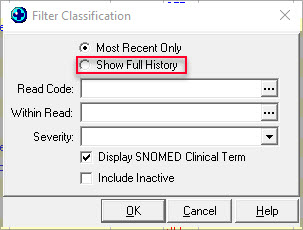
- Change the "filter" on the classifications list to "Show full history":
- Enter the beginning of the Read code you are wanting to find in "Within Read" e.g. enter "#C10" to find all classifications that are "Diabetes". Press the "enter" key to select the appropriate Read code. You will land up with a screen that looks like this:
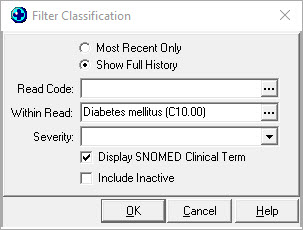
- Click on "OK" and you will almost certainly then show the Read code that needs to be inactivated.
0 Comments