You can customise the functionality if the green, red, and blue "buttons" in Patient Dashboard. These buttons can be "programmed" to:
- open the screening term linked to the dashboard item
- open an Advanced Form
- open a specific screening term
- open the "growth chart"
- open the immunisations tab of the patient manager
- open an outbox document
- add a specific classification
- record a declination
- select one of the outcomes defined for the associated screening term
- pop-up the smoking status/smoking cessation form
- pop-up a form to record alcohol consumption (including an Audit-C option)
- pop-up a form to record height and weight
- pop-up a form to do a falls risk assessment
- display a specific web page.
To customise Patient Dashboard:
- Put the patient with a last name of "Dashboard" and first name of "Patient" on the palette (please ensure there is only ONE patient with this name including any inactive patients).
- Run the form (Shift-F3) "Patient Dashboard Customise". (You may need to expand the "Procon Limited" folder to see this form as it may not be a "common form".
- Click on the button that corresponds to the section within Patient Dashboard that you want to customise.
- Change the function of the red, green, and blue buttons as required.
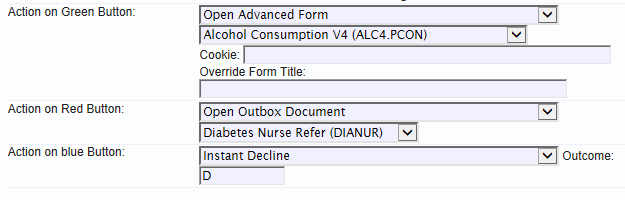
If the associated screening term has outcomes defined, you can also indicate which outcomes Patient Dashboard should interpret as meaning "Declined". For example, here is what will be shown for Bowel Screening:
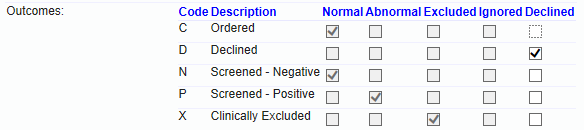
If you added additional outcomes such as "Declined by Parent" then the "Declined" column would need to be ticked for Patient Dashboard to intepret that outcome as meaning "Declined".
If the other values (Normal, Abnormal etc) are incorrect, these must be changed in the definition of the screening term itself.
0 Comments